- 1
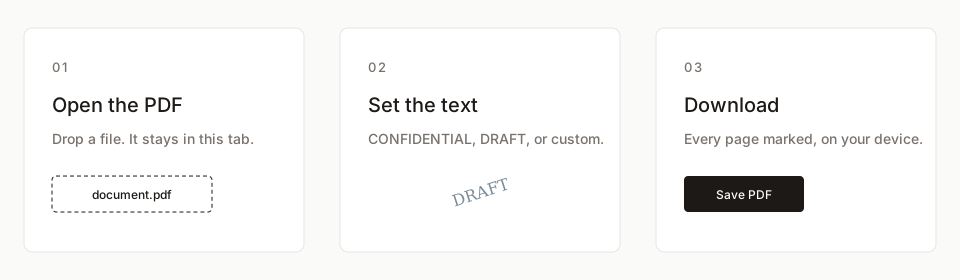
Open the PDF
Drop a PDF onto the editor. The file stays in memory in this browser tab and is never uploaded.
- 2
Set the watermark text
Choose CONFIDENTIAL, DRAFT, SAMPLE, or type a custom phrase. Adjust opacity, rotation, position, and optional tiling.
- 3
Download
The watermarked PDF is generated in the browser and saved to your downloads folder. Every page is marked.
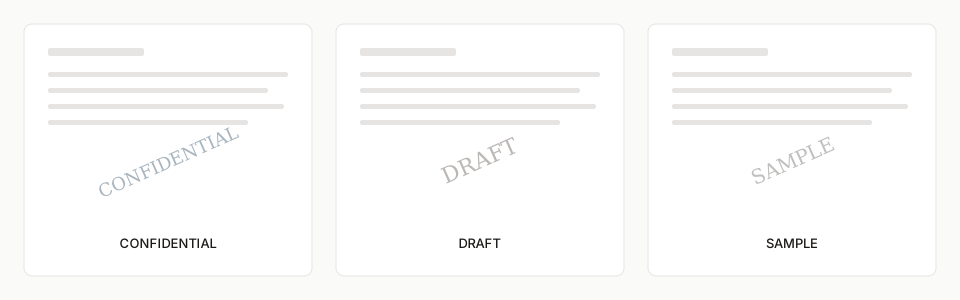
Open a confidential watermark, a draft watermark, or a sample watermark, or read how to add a watermark to a PDF.
How to watermark a PDF
Open a PDF in the editor above, set the watermark text, then download. The mark is real PDF text on each page, not a flattened picture of page 1. Use CONFIDENTIAL, DRAFT, SAMPLE, DO NOT COPY, or any custom phrase. You control position, opacity, rotation, color, and optional tiling. There is no file-size cap beyond what your browser can hold in memory.
- Applies the same watermark to every page, not a copy of page 1
- Keeps selectable text and existing links
- Works offline after the page has loaded
Watermark a PDF without uploading it
Most online PDF sites upload your document to a server, process it, then let you download the result. That is a problem for contracts, payroll, medical records, and unpublished manuscripts. This tool never posts the file. The PDF is read locally, watermarked locally, and saved locally. It runs in Chrome, Edge, Firefox, and Safari on Windows, Mac, and Linux. Adobe Acrobat is not required.
CONFIDENTIAL, DRAFT, and SAMPLE marks
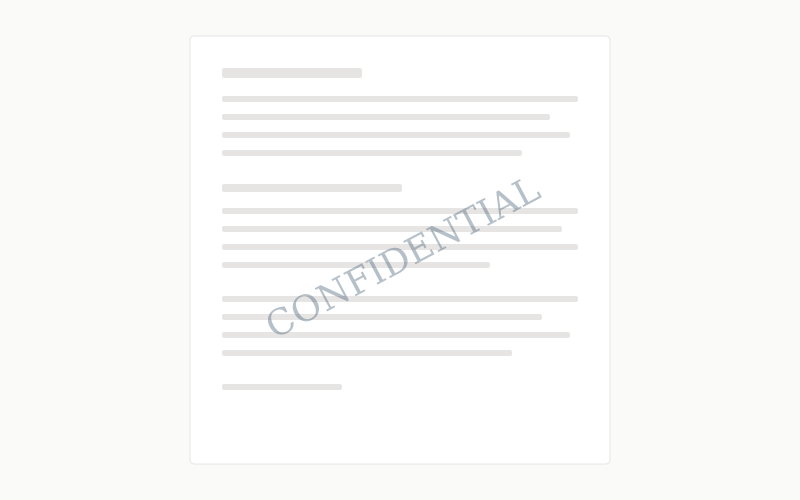
A confidential watermark tells recipients how to handle the file. A draft watermark tells them not to treat it as final. SAMPLE and DO NOT COPY are visual deterrents on review copies. Open the confidential, draft, or sample tools for those defaults, or see the how-to guide for Acrobat, Mac Preview, and Word comparisons. Use tiling when you need the mark to survive a crop or a screenshot of a single paragraph.
Tips
- Keep opacity between 15% and 35% so the text underneath stays readable.
- Rotate to about 45° or 330° so the mark is harder to crop out.
- Use Helvetica-style sans type: it stays clear at low opacity.
Frequently asked questions
Is it free to watermark a PDF?
Yes. There is no account, no page limit, and no watermark of our own added to your file.
Does watermarking a PDF work on Mac and Windows?
Yes. The tool runs in the browser on Windows, Mac, Linux, iPhone, and Android. Nothing to install.
Do I need Adobe Acrobat to watermark a PDF?
No. Chrome, Edge, Firefox, and Safari are enough. Acrobat Pro is not required.
Does the watermark apply to every page?
Yes. Each page is watermarked independently with vector text. A ten-page PDF still has ten distinct pages after download.
Do you store my PDF?
No. The file never leaves your device. We do not have a processing server for documents.
Open a PDF above, set the text, and download. For step-by-step comparisons with Acrobat, Preview, and Word, see the how-to guides.
Watermark a PDFRelated pages
Add a watermark to a PDF
Add a watermark to a PDF online. Free, no account, no file upload. Vector text on every page. Files stay in your browser. Download in seconds.
Free PDF watermark tool
Free PDF watermark tool. No account, no page cap, no file upload. Add text watermarks in your browser. Files never leave your device. Download instantly.
Watermark a PDF online
Watermark a PDF online with no install and no upload. Works in Chrome, Edge, Firefox, and Safari on Windows, Mac, and Linux. Files stay in this browser.
Add a confidential watermark to a PDF
Add a CONFIDENTIAL watermark to a PDF online. Free, no account, no upload. Red diagonal text on every page. Built for contracts and internal files.
Add a draft watermark to a PDF
Add a DRAFT watermark to a PDF online. Free, no account, no file upload. Marks every page so reviewers do not treat an unfinished file as final.
How to add a watermark to a PDF
How to add a watermark to a PDF: free browser tool, Acrobat Pro, Word export, and Mac Preview. Steps, limits, and when to use each method. No upload here.